
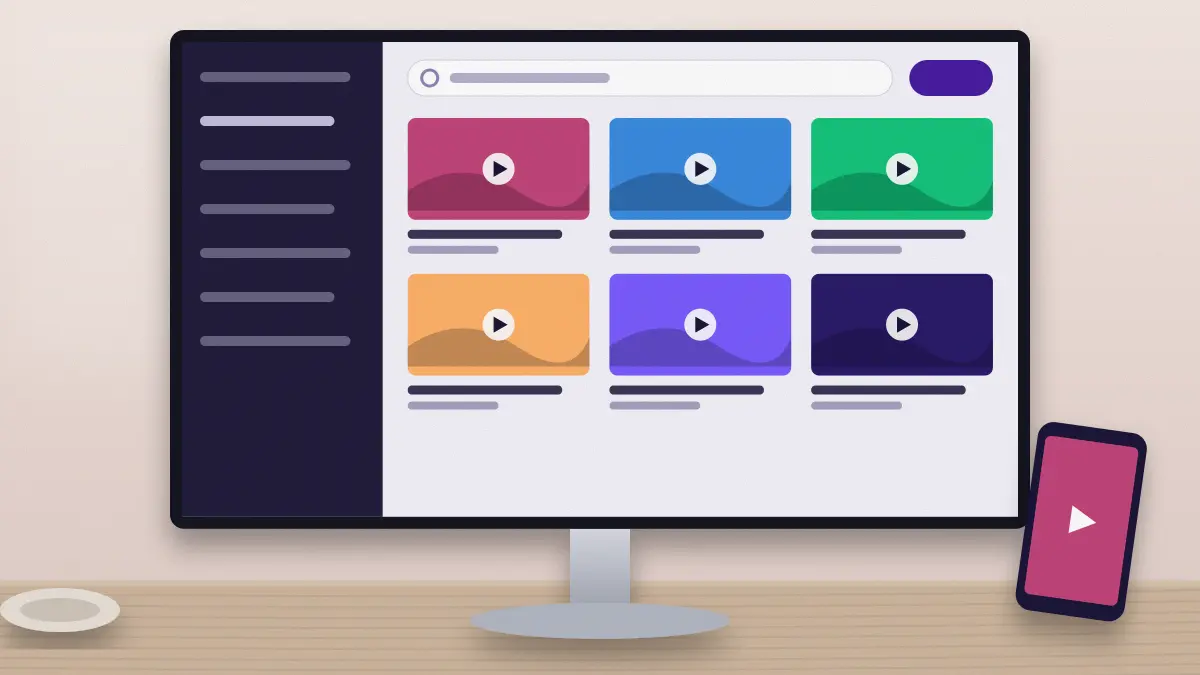
QMPlay2 includes a built-in YouTube browser. You can search, open results and play them in the same window you use for local files.
It operates through yt-dlp, a separate command-line tool that the player downloads on your behalf.
Opening the browser
The YouTube panel sits among the side panels of the main window. Enter a search term, press Enter and double-click a result to begin playback.
Results may also be added to the playlist, allowing you to queue several clips in succession.
Setting audio and video quality
- Click the Settings icon to the left of the search bar.
- Reorder the audio and video quality lists. Entries placed higher are tried first.
- Apply the changes.
If a video is unavailable in your preferred quality, QMPlay2 proceeds down the list until it finds a match.
Multi-language audio
Since version 25.09.03 the player supports YouTube videos that carry several audio languages. Switch between them from the audio streams list in the playback menu.
Watching 360-degree videos
Spherical view operates on the OpenGL and Vulkan outputs. Press Ctrl+3, or navigate to Playback → Video filters → Spherical view, then drag with the mouse to look around.
About yt-dlp
YouTube videos will not play without yt-dlp. QMPlay2 retrieves it automatically. You may remove the downloaded copy from the settings at any time.
Advanced users can supply additional yt-dlp parameters within the YouTubeDL module options, a facility added in release 26.06.27.
Resolving common problems
- Nothing plays on Windows: confirm that antivirus or firewall software is not blocking yt-dlp or preventing external programs from running.
- Errors following a site change: remove yt-dlp in the settings so that the player downloads a fresh copy.
- Full-screen issues with Vulkan: on older drivers Vulkan may fail to switch to exclusive full screen. Try OpenGL instead.
Other online sources
The same Extensions module provides an internet-radio browser and a media browser. Last.fm scrobbling and a lyrics lookup are likewise part of it.
Prepare a simple playback test
QMPlay2 online playback is easier to troubleshoot when you first establish that the application can play an ordinary local file. That confirms that the basic video and audio outputs are working. Then choose one publicly accessible video for your first online test. Avoid starting with restricted, unavailable or unusually demanding content, because those cases introduce additional causes of failure before you know whether the basic online path works.
Check that the computer has a working internet connection and that the correct audio device is selected. If you normally use a proxy or a managed network, remember that an application and a web browser may not follow the same connection settings. Keep a note of the exact behaviour: no search results, a result that never starts, sound without video, or playback that stops after a while. Each symptom suggests a different part of the workflow.
Use search results deliberately
Enter a specific search phrase and review the result title before adding an item to the playlist. Similar titles can refer to trailers, excerpts, commentary or different uploads. Beginning with the expected item makes quality and timing comparisons more meaningful. If you are preparing several items, add a small number first and check that they are the videos you intended.
A playlist of online items depends on those items remaining available. Saving an entry is not the same as saving a local copy of the video, and the source can change or disappear later. For a session that matters, check the entries shortly before using them. Keep local media and online results organised so that a missing internet item does not look like a missing file on your computer. Clear names and a short test reduce surprises during continuous playback.
Choose quality for the connection and display
The highest available resolution is not always the most practical choice. Think about the size of the display, the capacity of the connection and the decoding ability of the computer. A lower video quality can produce a smoother experience on a busy wireless network or a modest laptop. Start with a setting that plays reliably, then increase the preference if you want to compare the picture.
Quality preferences are priorities rather than a guarantee that every upload contains the same variants. Different videos can offer different resolutions, audio formats and encoding choices. If playback falls back to another quality, check the options available for that particular item before assuming that your preference was ignored. When changing quality, test the same video and passage. Comparing unrelated videos can confuse a network difference with a change in format availability or decoding workload.
Keep helper-tool problems separate from playback problems
Online extraction and video rendering are different stages. The helper tool must obtain usable media information before the player can decode and display the result. If local files work but every online result fails to start, investigate the extraction step and the network before replacing graphics settings. Conversely, if media begins playing with sound but the picture is broken, output or decoding settings may deserve attention.
Security software can block a helper executable or prevent the player from launching it. Read the actual security notification and verify the file involved before changing permissions. Avoid disabling the entire firewall or antivirus as a general troubleshooting step. If the helper has become outdated or its download failed, use the application facilities available in your build to review its state. Change one thing and retry the same public video so the result remains interpretable.
Understand service restrictions and unavailable items
A result title appearing in search does not guarantee that the underlying video can be played in every location or session. The uploader may remove it, restrict it or make it unavailable after the result was listed. An account requirement or a service-side change can also affect access. Do not treat such a case as proof that the media player is installed incorrectly.
Try another ordinary public video to distinguish an item-specific restriction from a general failure. If several public items fail in the same way, check the connection and extraction tool. If only one fails, record that difference and avoid repeated settings changes that affect all playback. A player cannot promise access to every item offered by an external service. Use content that you are entitled to access and respect the restrictions associated with the source.
Check audio tracks and viewing mode
When the picture works but the spoken language is unexpected, inspect the available audio streams before changing the video settings. The set of languages depends on the individual video. A missing language may simply not be offered in that upload. For a useful comparison, replay a short passage after selecting another available stream and confirm that the change is actually audible.
Spherical viewing is intended for compatible panoramic content. Enabling it on a normal flat video does not create a useful panoramic recording. If the picture appears distorted after experimenting, restore the normal viewing mode and replay the same item. Check full-screen behaviour separately from media access: a video that plays correctly in a window has already passed several stages of the online workflow. That helps you focus on the display configuration when the remaining problem occurs only in full screen.
Build a reliable online viewing routine
Before a long session, test the first item, the next queued item and the selected output device. Keep enough connection capacity available for the chosen quality. Large background downloads can produce buffering that looks like a decoder failure even when the same file would play smoothly from local storage. If repeated pauses occur, compare a lower quality before changing unrelated application modules.
Keep troubleshooting notes short and specific. Record whether search worked, whether a media address was obtained, whether playback began and what happened next. Include whether the same computer could play local media during the problem. If a future helper or application update changes the result, those notes make the difference clear. Once playback is reliable, keep the settings stable and avoid changing advanced extraction arguments without a particular need and a way to reverse the change.
FAQs
Does the YouTube browser replace the normal web browser? It provides an online search and playback workflow inside the player. It does not guarantee every account feature or every interaction offered by the service website. Use it for supported media playback and distinguish that role from account management, uploading and other tasks that belong to the service interface.
Why does a search result fail to play? The video may be unavailable, restricted or affected by an extraction problem. Test another ordinary public item and confirm that local playback works. If all online items fail, investigate the helper tool and connection. If only one item fails, avoid changing the whole player configuration to address that single result.
Can I force the same resolution for every upload? A preference cannot create a variant that the upload does not provide. Quality availability varies between items, and a fallback may be needed. Choose priorities that suit your display and connection, then check the actual options for the video you are testing before assuming that the preference has been ignored.
Why does the video buffer on a fast computer? Processing speed and connection consistency are separate factors. A fast processor cannot replace missing network data. Check wireless conditions, competing downloads and the selected quality. Compare a lower-quality stream and a local file to distinguish network pauses from decoding problems before changing the graphics or audio configuration.
Will a saved online playlist work forever? No. It stores references to online items, whose availability can change. An uploader or service may remove or restrict a video later. Check important playlists before a planned session, and do not treat saved online entries as permanent local media files or as a guarantee of future access.
Should I change advanced helper arguments immediately? Begin with the normal configuration and one accessible public test item. Advanced arguments can introduce another source of failure if their purpose is unclear. Only change them for a specific reason, record the original value and retest the same item. That keeps any improvement or regression connected to a known change.
Conclusion
QMPlay2 online viewing works best when you separate search, extraction, network delivery and media playback during troubleshooting. Establish local playback first, test ordinary public content and choose quality that suits the connection and computer. Treat missing videos and unavailable variants as item-specific possibilities before changing global settings. Keep helper-tool permissions and display problems distinct, and save a short record of the tests that matter. With a stable baseline and a modest playlist, the integrated browser can be used more predictably for the online media your setup supports.